WP Google Map Logo
WP Google Map Easy, Powerful WordPress Maps
Home Map Examples Documentation Pricing Contact Us
LIVE CHAT Support Ticket
Home
Simple Location Map Multiple Markers Map Custom Styled Map Directions & Routing Map Localization Based Map Dynamic Map Control
Documentation Pricing Contact Us
LIVE CHAT Support Ticket

Installation

  • WP Google Map Quick Installation
  • How to install and activate WP Google Map?
  • How to Activate the License key?
  • How to add billing information to an existing Google project?
  • How to get Your Lifetime License Key?
  • How to get an API key from Google Map Platform?

Customization

  • How to enable the Direction option in Google Map?
  • How to add Multiple Markers?
  • How do enable Autocomplete option for direction options?
  • How to Enable Category Filtering on Marker Listing
  • How to Enable Title/Label Search on Marker Listing
  • How to Change Marker Listing Placement
  • How to add custom CSS and Javascript?
  • How to change the Map theme easily?
  • How to add Google Map in Sidebar as Widget – New Widget Editor (From WordPress 5.8)?
  • How to add Google Map in your WordPress post(Block Editor)?
  • How to create a new map in WP Google Map
  • How to add Google Map in your WordPress page(Block Editor)?
  • How to add Google Map in Sidebar as widget(Till WordPress 5.7.2)?
  • How to add Google Map in your WordPress post(Classic Editor)?
  • How to add Google Map to your WordPress page(classic editor)?

Troubleshooting

  • How to Fix the “Google Map Loading” Issue Caused by Complianz WordPress plugin
  • How to fix the billing not enabled map error in for google map
  • How to Fix “You have included the Google Maps API multiple times on this page” Error
  • How to add billing information to an existing Google project?
  • How to debug or fix the Map loading problems?
  • Can’t see the “WP Google Map” button in new Guttenburg Editor?
  • Do you see “the page can’t load the map correctly”?

FAQ

  • Is it possible to disable the heading of the map?
  • How to get an API key from Google Map Platform?

Settings

  • How to enable the Direction option in Google Map?
  • How to change the directions distance calculation unit system?
  • How do enable Autocomplete option for direction options?
  • How to Change Marker Listing Placement
  • How to disable Zoom, Street View, Dragging (Control Options)
  • How to Fix “You have included the Google Maps API multiple times on this page” Error
  • How to customize Map Language and Regional Area Settings
View Categories
  • Home
  • Documentation
  • Customization
  • How to Enable Title/Label Search on Marker Listing

How to Enable Title/Label Search on Marker Listing

1 min read

The WP Google Map plugin allows users to search through their marker listings effortlessly. By enabling the Title/Label search, you can help your visitors find specific locations by searching for keywords within the marker’s title, description, or address.

Practical Use Case #

If you have a map with dozens of markers (e.g., a store locator or a list of restaurants), a search bar allows users to quickly filter the list. Instead of scrolling through a long table or list, they can just type “Sushi” or “Park Avenue” to find what they need.

How to Enable Title Search #

Follow these steps to enable the search feature on your marker listing:

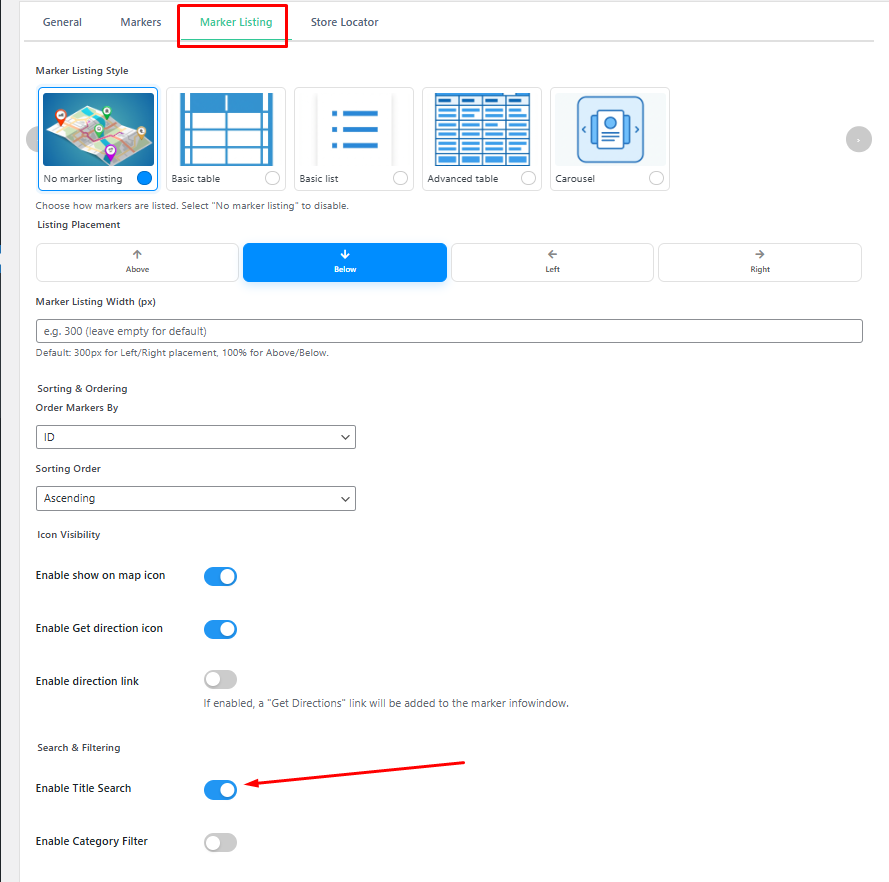
  1. Open the Map Editor: Navigate to your WordPress dashboard, go to the WP Google Map menu, and select the map you wish to edit.
  2. Access Marker Listing Tab: Click on the Marker Listing tab in the map properties section.
  3. Find Search & Filtering: Scroll down to the Search & Filtering section.
  4. Toggle Title Search: Locate the Enable Title Search option and toggle the switch to “On”.
  5. Update Map: Click the Update Map button at the bottom of the page to save your changes.
Customizing the Search Placeholder #

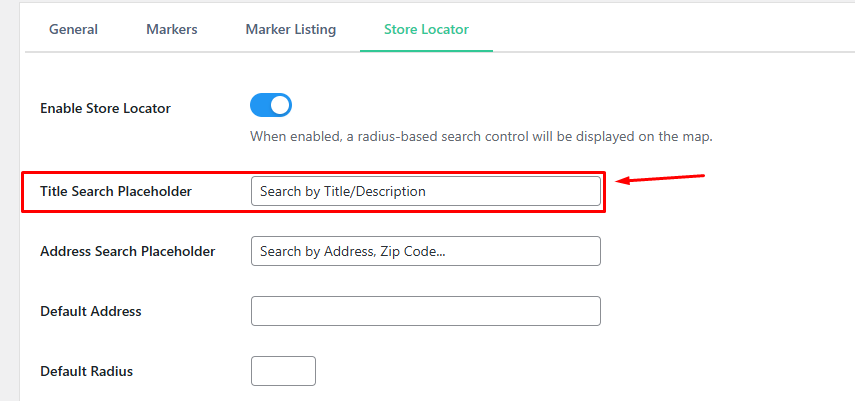
You can customize the text that appears inside the search box to provide better instructions to your users.

  1. Navigate to the Store Locator tab (even if you are not using the full store locator feature, the placeholder setting is shared here).
  2. Find the Title Search Placeholder field.
  3. Enter your custom text (e.g., “Search by restaurant name…”).
  4. Update the map.

Supported Marker Listing Styles #

The Title Search feature is compatible with the following listing themes:

  • Table: A clean, structured tabular view.
  • Advanced Table: Features sorting and pagination (Pro feature).
  • Carousel: A sliding horizontal list of markers.

[!NOTE]
If you are using the Basic List style, ensure that your design accommodates the search bar placement.

Frontend Experience #

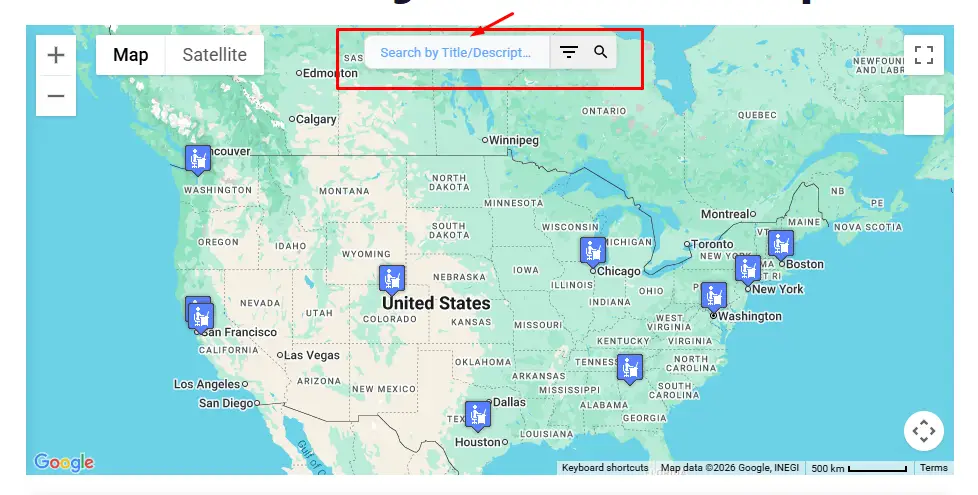
Once enabled, a search input field will appear above or below your map (depending on your Listing Placement settings). You can see this feature in action on our Live Demo Page.

  • Search Scope: The search bar queries the Marker Title, Description, and Address fields.
  • Real-time Filtering: The marker list is updated dynamically as the user types or clicks the search button.
  • Map Synergy: When a search is performed, the markers on the map are also filtered to match the search results.
Need More Advanced Filtering? #

If you require advanced filtering by categories or radius-based proximity searches, consider exploring our Pro Version which includes enhanced Store Locator features.


Need help? Explore our Documentation or check out more Live Map Demos.

What are your Feelings

Share This Article :

  • Facebook
  • X
  • LinkedIn
  • Pinterest
Still stuck? How can we help?

How can we help?

Updated on January 14, 2026
How to Enable Category Filtering on Marker ListingHow to Change Marker Listing Placement

Powered by BetterDocs

Table of Contents
  • Practical Use Case
  • How to Enable Title Search
  • Customizing the Search Placeholder
  • Supported Marker Listing Styles
  • Frontend Experience
  • Need More Advanced Filtering?

WP Google Map

The most user-friendly and customizable Google Maps plugin for WordPress. Easily embed, customize, and manage maps on your website.

PayPal Visa Mastercard American Express Apple Pay Google Pay

Quick Links

  • Home
  • Map Demos
  • Documentation
  • Pricing
  • Support Portal
  • Contact Us

Legal & Contact

  • Privacy Policy
  • Terms of Service
  • info@wpgooglemap.com
© WP Google Map. All rights reserved. WP Google Map | WordPress.org Plugin