
The WP Google Map plugin provides flexible layout options for displaying your markers. You can choose to place the marker listing at various positions around the map to best fit your website’s design and improve user navigation.
Practical Use Case #
Choosing the right placement can significantly impact user experience:
- Above/Below Map: Ideal for standard blog posts or simpler layouts where a full-width list is preferred.
- Left/Right of Map: A professional “sidebar” style common for store locators and directories, allowing users to view the list and the map side-by-side.
Available Placement Options #
The plugin supports four main placement positions:
- Above Map: The marker listing appears directly before the map container.
- Below Map: The default setting; the listing appears immediately after the map.
- Left of Map: The listing is placed in a sidebar to the left of the map.
- Right of Map: The listing is placed in a sidebar to the right of the map.

How to Change the Placement #
Follow these simple steps to adjust where your marker list is displayed:
- Open the Map Editor: In your WordPress dashboard, go to the WP Google Map menu and select the map you want to customize.
- Navigate to Marker Listing Tab: Click on the Marker Listing tab.
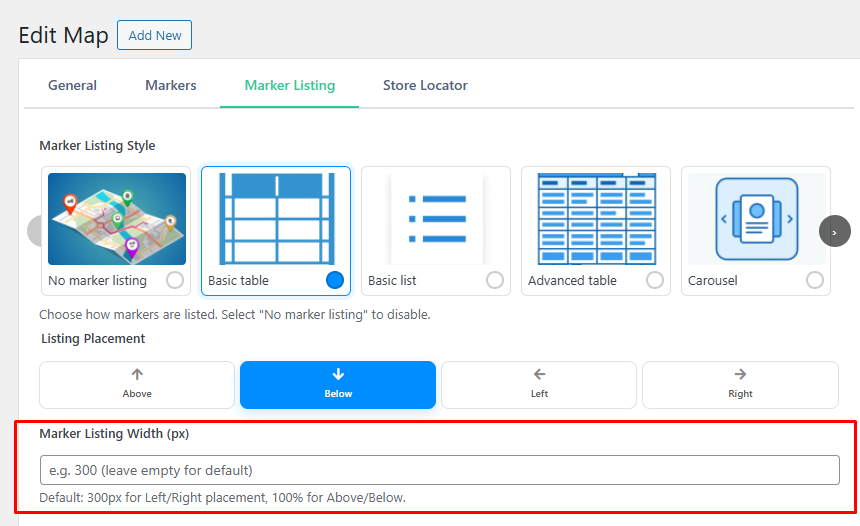
- Find Listing Placement: Locate the Listing Placement section in the right-hand column (or below the styles grid).
- Select Position: Click on the icon corresponding to your desired position (Above, Below, Left, or Right).
- Update Map: Click the Update Map button to save your changes.
Customizing Sidebar Width #
When using the Left of Map or Right of Map placements, you can further refine the layout by setting a custom width for the listing container.
- In the same Listing Placement section, find the Marker Listing Width (px) field.
- Enter your desired width in pixels (e.g.,
300). - Leave it empty to use the default width (300px).
- Update the map.
See it in Action #
Want to see how different placements look on a live site? Check out our Live Map Demos to explore various layout configurations.
Need More Help? #
If you are looking for advanced styling or premium listing themes, visit our Pricing Page to see what the Pro version offers. For technical assistance, feel free to reach out via our Support Portal.
Explore more guides in our Documentation or Contact Us for custom inquiries.


