WP Google Map Logo
WP Google Map Easy, Powerful WordPress Maps
Home Map Examples Documentation Pricing Contact Us
LIVE CHAT Support Ticket
Home
Simple Location Map Multiple Markers Map Custom Styled Map Directions & Routing Map Localization Based Map Dynamic Map Control
Documentation Pricing Contact Us
LIVE CHAT Support Ticket

Installation

  • WP Google Map Quick Installation
  • How to install and activate WP Google Map?
  • How to Activate the License key?
  • How to add billing information to an existing Google project?
  • How to get Your Lifetime License Key?
  • How to get an API key from Google Map Platform?

Customization

  • How to enable the Direction option in Google Map?
  • How to add Multiple Markers?
  • How do enable Autocomplete option for direction options?
  • How to Enable Category Filtering on Marker Listing
  • How to Enable Title/Label Search on Marker Listing
  • How to Change Marker Listing Placement
  • How to add custom CSS and Javascript?
  • How to change the Map theme easily?
  • How to add Google Map in Sidebar as Widget – New Widget Editor (From WordPress 5.8)?
  • How to add Google Map in your WordPress post(Block Editor)?
  • How to create a new map in WP Google Map
  • How to add Google Map in your WordPress page(Block Editor)?
  • How to add Google Map in Sidebar as widget(Till WordPress 5.7.2)?
  • How to add Google Map in your WordPress post(Classic Editor)?
  • How to add Google Map to your WordPress page(classic editor)?

Troubleshooting

  • How to Fix the “Google Map Loading” Issue Caused by Complianz WordPress plugin
  • How to fix the billing not enabled map error in for google map
  • Step-by-Step: Troubleshooting Google Map Loading Issues with Speed Optimizer WordPress Plugin(by SiteGround)
  • How to Fix “You have included the Google Maps API multiple times on this page” Error
  • How to add billing information to an existing Google project?
  • How to debug or fix the Map loading problems?
  • Can’t see the “WP Google Map” button in new Guttenburg Editor?
  • Do you see “the page can’t load the map correctly”?
  • Plugin Compatibility
    • How to Fix the “Google Map Loading” Issue Caused by Complianz WordPress plugin
    • Step-by-Step: Troubleshooting Google Map Loading Issues with Speed Optimizer WordPress Plugin(by SiteGround)

FAQ

  • Is it possible to disable the heading of the map?
  • How to get an API key from Google Map Platform?

Settings

  • How to enable the Direction option in Google Map?
  • How to change the directions distance calculation unit system?
  • How do enable Autocomplete option for direction options?
  • How to Change Marker Listing Placement
  • How to disable Zoom, Street View, Dragging (Control Options)
  • How to Fix “You have included the Google Maps API multiple times on this page” Error
  • How to customize Map Language and Regional Area Settings
View Categories
  • Home
  • Documentation
  • Troubleshooting
  • Plugin Compatibility
  • Step-by-Step: Troubleshooting Google Map Loading Issues with Speed Optimizer WordPress Plugin(by SiteGround)

Step-by-Step: Troubleshooting Google Map Loading Issues with Speed Optimizer WordPress Plugin(by SiteGround)

3 min read

If you are using the WP Google Map plugin alongside the Speed Optimizer plugin, you might encounter an issue where your Google Maps fail to load or disappear from your site.

This guide will explain why this happens and show you exactly how to fix it by configuring the Speed Optimizer correctly.

The Problem #

Speed Optimizer improves your website speed by changing how scripts (like JavaScript) load on your page. It often defers execution or combines scripts together to prevent them from blocking the page content.

However, the Google Maps API is very sensitive. It requires strict, sequential loading. When Speed Optimizer defers or combines the Maps API and WP Google Map scripts, the required loading order is broken, resulting in a blank space or errors where the map should appear.

Identifying the Conflict #

To be certain Speed Optimizer is causing the issue, perform a quick test:

  1. In your WordPress Dashboard, go to Plugins > Installed Plugins.
  2. Briefly Deactivate the Speed Optimizer plugin.
  3. Reload the page on your site where the map is supposed to be.

If the map appears perfectly after deactivation, you have confirmed the conflict. Reactivate the plugin so we can apply the proper fix below.

Step-by-Step Resolution #

To fix the map, we need to tell Speed Optimizer to ignore the specific scripts required by WP Google Map.

Step 1: Navigate to Frontend JavaScript Settings #

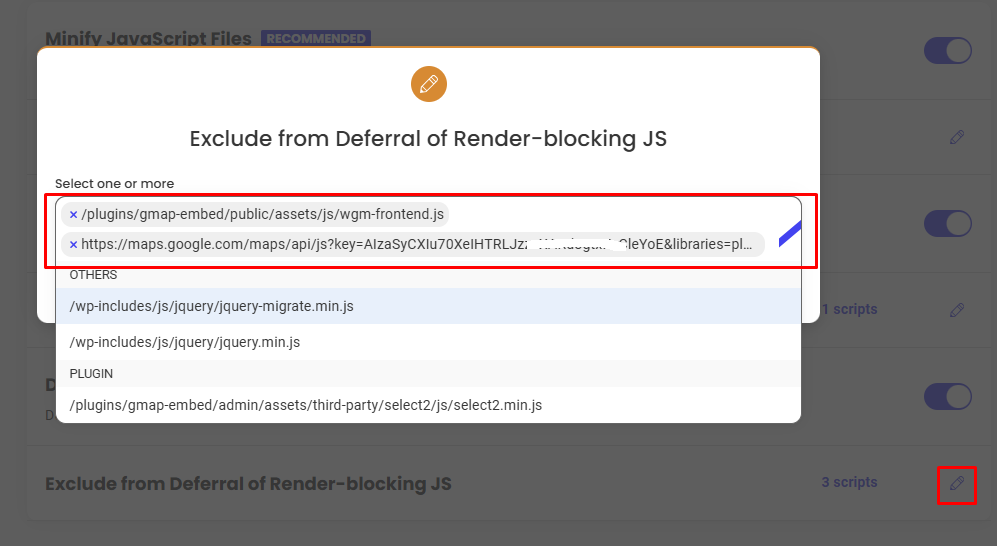
  1. From your WordPress Dashboard menu, go to Speed Optimizer > Frontend.
  2. Click on the JavaScript tab.

Step 2: Exclude Scripts from Deferral #

To fix the most common issue, we will exclude our scripts from being deferred:

  1. Scroll down to the Defer Render-blocking JavaScript section (make sure the toggle is ON).
  2. Click the pencil icon or the edit button next to Exclude from Deferral of Render-blocking JS.
  3. A dropdown or text field will appear. You need to add the following two handles/URLs exactly as shown:
    • /plugins/gmap-embed/public/assets/js/wgm-frontend.js
    • https://maps.google.com/maps/api
  4. Click Confirm or Save to add these exclusions.
Step 3: Exclude Scripts from Minification/Combination (If Necessary) #

Usually, excluding the scripts from deferral (Step 2) is enough. However, if your map is still not loading, you should also exclude them from Minification and Combination.

  1. On the same JavaScript settings page, locate the Minify JavaScript Files and Combine JavaScript Files sections.
  2. If these options are turned on, look for their respective exclusion settings (Exclude from JavaScript Minification and Exclude from JavaScript Combination).
  3. Add the exact same two entries:
    • /plugins/gmap-embed/public/assets/js/wgm-frontend.js
    • https://maps.google.com/maps/api

Step 4: Clear All Caches #

Changes made in optimization plugins won’t take effect immediately until the cache is cleared.

  1. In the top WordPress admin bar, find the Purge SG Cache button and click it to clear your site’s cache.
  2. Additionally, clear your browser’s cache or visit your page in an Incognito/Private window.

[Placeholder: Insert a screenshot highlighting the “Purge SG Cache” option in the top WordPress admin bar.]

Confirming the Fix #

Once you have cleared your caches, refresh the page containing your map. The WP Google Map should now load correctly and interact smoothly, while your website continues to benefit from the performance boosts of the Speed Optimizer.

What are your Feelings

Share This Article :

  • Facebook
  • X
  • LinkedIn
  • Pinterest
Still stuck? How can we help?

How can we help?

Updated on April 3, 2026
How to Fix the “Google Map Loading” Issue Caused by Complianz WordPress pluginHow to Fix the “Google Map Loading” Issue Caused by Complianz WordPress plugin

Powered by BetterDocs

Table of Contents
  • The Problem
  • Identifying the Conflict
  • Step-by-Step Resolution
    • Step 1: Navigate to Frontend JavaScript Settings
    • Step 2: Exclude Scripts from Deferral
    • Step 3: Exclude Scripts from Minification/Combination (If Necessary)
    • Step 4: Clear All Caches
  • Confirming the Fix

WP Google Map

The most user-friendly and customizable Google Maps plugin for WordPress. Easily embed, customize, and manage maps on your website.

PayPal Visa Mastercard American Express Apple Pay Google Pay

Quick Links

  • Home
  • Map Demos
  • Documentation
  • Pricing
  • Support Portal
  • Contact Us

Legal & Contact

  • Privacy Policy
  • Terms of Service
  • info@wpgooglemap.com
© WP Google Map. All rights reserved. WP Google Map | WordPress.org Plugin