WP Google Map Logo
WP Google Map Easy, Powerful WordPress Maps
Home Map Examples Documentation Pricing Contact Us
LIVE CHAT Support Ticket
Home
Simple Location Map Multiple Markers Map Custom Styled Map Directions & Routing Map Localization Based Map Dynamic Map Control
Documentation Pricing Contact Us
LIVE CHAT Support Ticket

Installation

  • WP Google Map Quick Installation
  • How to install and activate WP Google Map?
  • How to Activate the License key?
  • How to add billing information to an existing Google project?
  • How to get Your Lifetime License Key?
  • How to get an API key from Google Map Platform?

Customization

  • How to enable the Direction option in Google Map?
  • How to add Multiple Markers?
  • How do enable Autocomplete option for direction options?
  • How to Enable Category Filtering on Marker Listing
  • How to Enable Title/Label Search on Marker Listing
  • How to Change Marker Listing Placement
  • How to add custom CSS and Javascript?
  • How to change the Map theme easily?
  • How to add Google Map in Sidebar as Widget – New Widget Editor (From WordPress 5.8)?
  • How to add Google Map in your WordPress post(Block Editor)?
  • How to create a new map in WP Google Map
  • How to add Google Map in your WordPress page(Block Editor)?
  • How to add Google Map in Sidebar as widget(Till WordPress 5.7.2)?
  • How to add Google Map in your WordPress post(Classic Editor)?
  • How to add Google Map to your WordPress page(classic editor)?

Troubleshooting

  • How to Fix the “Google Map Loading” Issue Caused by Complianz WordPress plugin
  • How to fix the billing not enabled map error in for google map
  • How to Fix “You have included the Google Maps API multiple times on this page” Error
  • How to add billing information to an existing Google project?
  • How to debug or fix the Map loading problems?
  • Can’t see the “WP Google Map” button in new Guttenburg Editor?
  • Do you see “the page can’t load the map correctly”?

FAQ

  • Is it possible to disable the heading of the map?
  • How to get an API key from Google Map Platform?

Settings

  • How to enable the Direction option in Google Map?
  • How to change the directions distance calculation unit system?
  • How do enable Autocomplete option for direction options?
  • How to Change Marker Listing Placement
  • How to disable Zoom, Street View, Dragging (Control Options)
  • How to Fix “You have included the Google Maps API multiple times on this page” Error
  • How to customize Map Language and Regional Area Settings
View Categories
  • Home
  • Documentation
  • Customization
  • How to Change Marker Listing Placement

How to Change Marker Listing Placement

1 min read

The WP Google Map plugin provides flexible layout options for displaying your markers. You can choose to place the marker listing at various positions around the map to best fit your website’s design and improve user navigation.

Practical Use Case #

Choosing the right placement can significantly impact user experience:

  • Above/Below Map: Ideal for standard blog posts or simpler layouts where a full-width list is preferred.
  • Left/Right of Map: A professional “sidebar” style common for store locators and directories, allowing users to view the list and the map side-by-side.

Available Placement Options #

The plugin supports four main placement positions:

  1. Above Map: The marker listing appears directly before the map container.
  2. Below Map: The default setting; the listing appears immediately after the map.
  3. Left of Map: The listing is placed in a sidebar to the left of the map.
  4. Right of Map: The listing is placed in a sidebar to the right of the map.

How to Change the Placement #

Follow these simple steps to adjust where your marker list is displayed:

  1. Open the Map Editor: In your WordPress dashboard, go to the WP Google Map menu and select the map you want to customize.
  2. Navigate to Marker Listing Tab: Click on the Marker Listing tab.
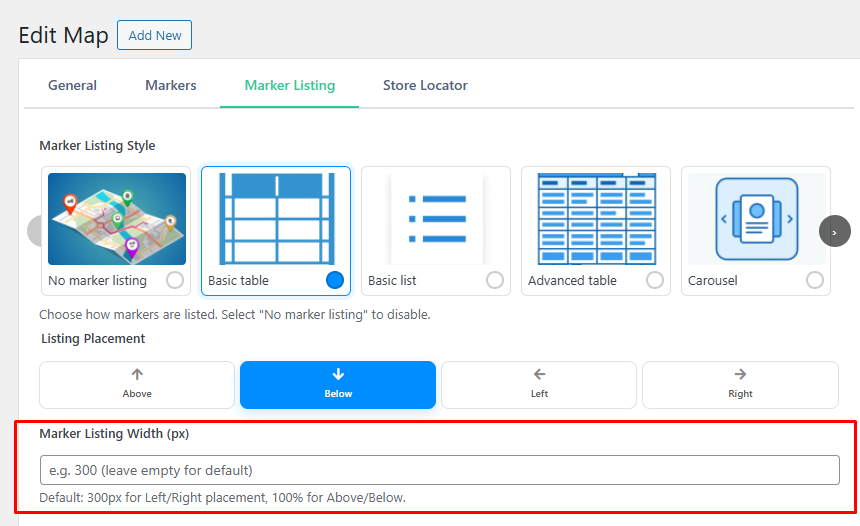
  3. Find Listing Placement: Locate the Listing Placement section in the right-hand column (or below the styles grid).
  4. Select Position: Click on the icon corresponding to your desired position (Above, Below, Left, or Right).
  5. Update Map: Click the Update Map button to save your changes.

Customizing Sidebar Width #

When using the Left of Map or Right of Map placements, you can further refine the layout by setting a custom width for the listing container.

  1. In the same Listing Placement section, find the Marker Listing Width (px) field.
  2. Enter your desired width in pixels (e.g., 300).
  3. Leave it empty to use the default width (300px).
  4. Update the map.

See it in Action #

Want to see how different placements look on a live site? Check out our Live Map Demos to explore various layout configurations.

Need More Help? #

If you are looking for advanced styling or premium listing themes, visit our Pricing Page to see what the Pro version offers. For technical assistance, feel free to reach out via our Support Portal.


Explore more guides in our Documentation or Contact Us for custom inquiries.

What are your Feelings

Share This Article :

  • Facebook
  • X
  • LinkedIn
  • Pinterest
Still stuck? How can we help?

How can we help?

Updated on January 14, 2026
How to Enable Title/Label Search on Marker Listing

Powered by BetterDocs

Table of Contents
  • Practical Use Case
  • Available Placement Options
  • How to Change the Placement
  • Customizing Sidebar Width
  • See it in Action
  • Need More Help?

WP Google Map

The most user-friendly and customizable Google Maps plugin for WordPress. Easily embed, customize, and manage maps on your website.

PayPal Visa Mastercard American Express Apple Pay Google Pay

Quick Links

  • Home
  • Map Demos
  • Documentation
  • Pricing
  • Support Portal
  • Contact Us

Legal & Contact

  • Privacy Policy
  • Terms of Service
  • info@wpgooglemap.com
© WP Google Map. All rights reserved. WP Google Map | WordPress.org Plugin